

In The Box
Check the contents before you begin.
 Piri Max Pro v.0
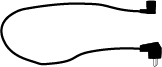 Power Cable
 Eye Protection
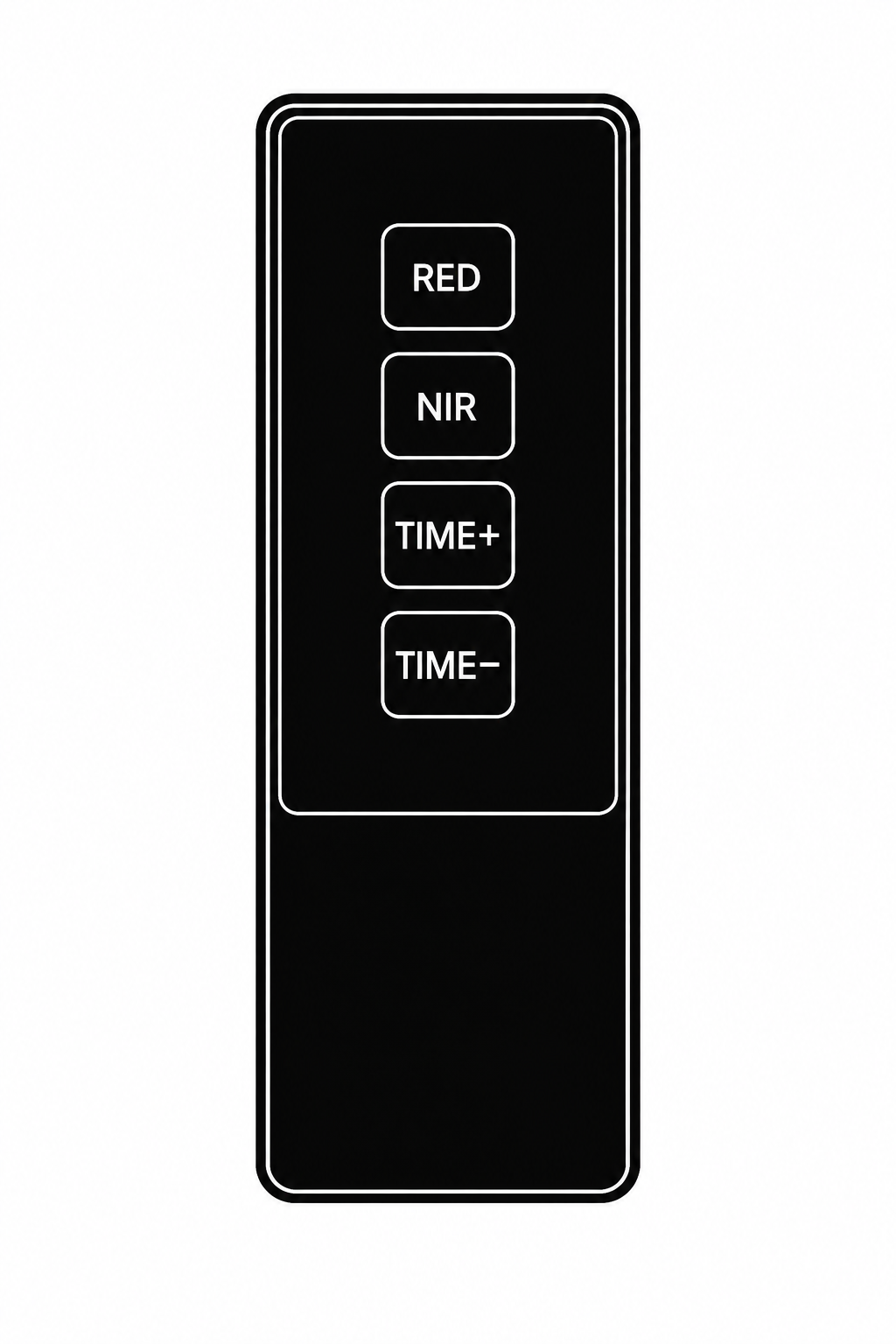 Remote Control
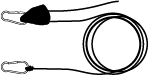 Lifting Rope
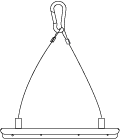 Mounting Hardware
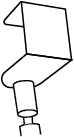 Door Hanging Kit
Specifications
| Model | Piri Max Pro v.0 |
|---|---|
| LED Technology | 5W, Mono Chip |
| LED Count | 300 |
| Wavelengths | 2 Red & 3 NIR |
| Wavelength values | 630, 660, 810, 830, 850nm |
| Category | Home Use |
| Dimensions | 910mm x 298mm x 60mm (35.8" x 11.7" x 2.4") |
| Weight | 11 kg (24.3 lb) |
| Beam Angle | 30 degrees |
| EMF Radiation | 0 μT @ 8cm |
| Voltage | AC 100-250V 50/60Hz |
| Lifespan | 100,000 hours |
Specifications are retained from the existing manual for this earlier model. Contact Piri Red to confirm your hardware revision.
Setup & Controls
Connect the device to a power outlet and use the touchscreen interface to control your red light therapy sessions with advanced features and preset modes.
START/PAUSE
Light Control
- Click to turn on the light
- When the light is off, the device is in standby mode
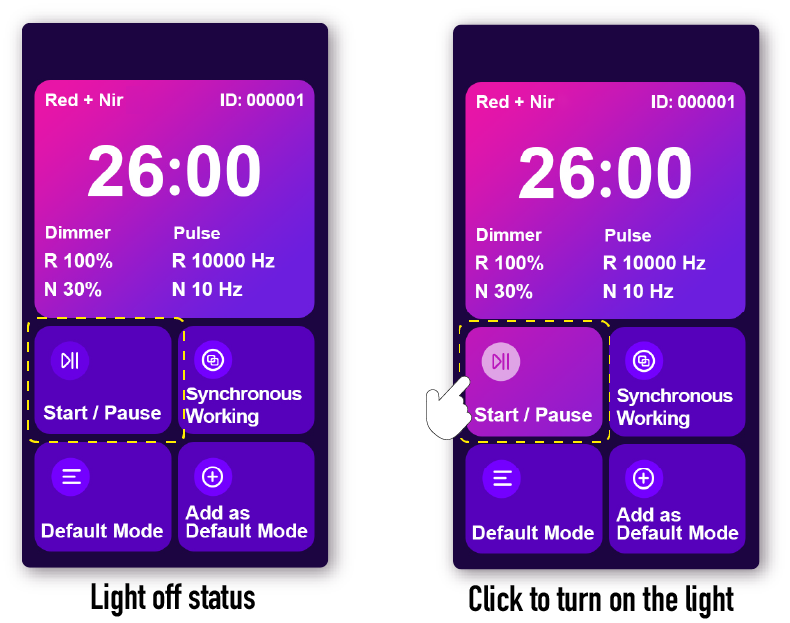
Standby mode: click to turn on the light TIME SETTING
Session Duration
- Click to enter the time-setting mode
- Slide the color block to adjust the session duration
- You can also turn off the time setting if desired
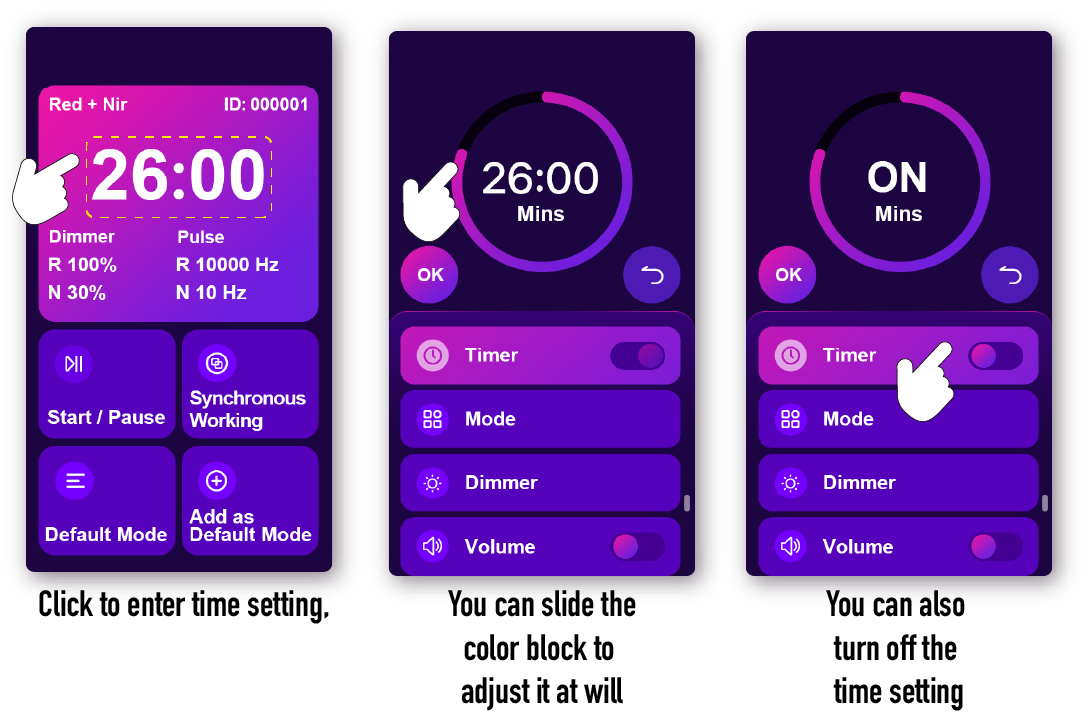
Click to enter the time settings, slide the color block to adjust the duration, or turn off the timer DIMMER
Brightness Control
- Click to enter the brightness-adjustment mode
- Slide the color block to adjust brightness
- Or click the "+" or "-" buttons for precise control
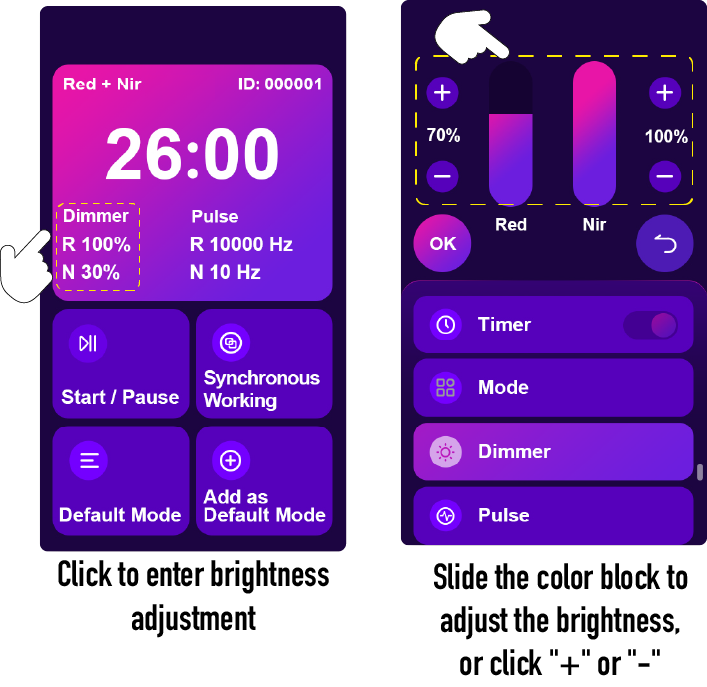
Click to adjust brightness, then slide the color block or use the +/- buttons MODE SELECTION
Light Type Selection
- Open the light-mode selection screen
- Choose Red or NIR (Near-Infrared) for this device's wavelength groups
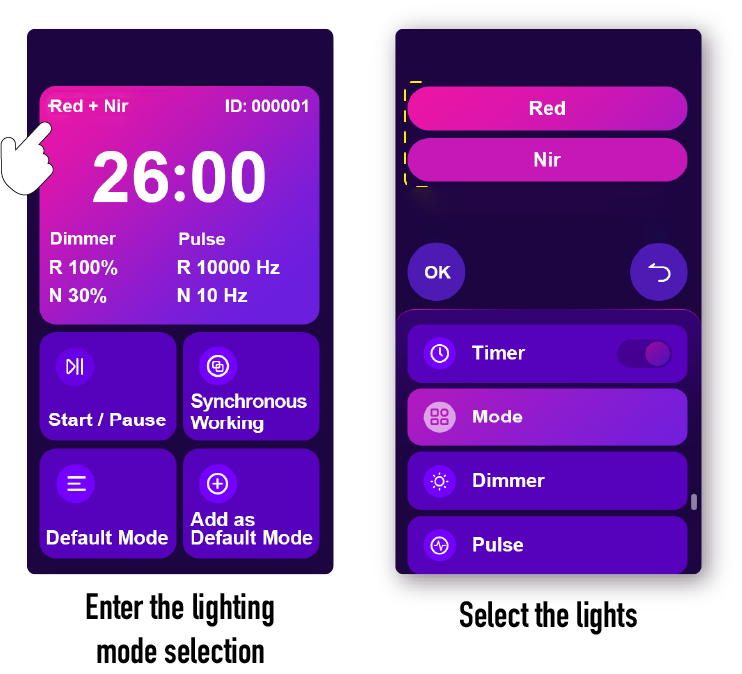
Open the light-mode selection screen and select the lights PULSE SETTING
Pulse Mode Configuration
- Enter pulse mode for pulsed light therapy
- Click on the numbers to select the desired pulse frequency
- Adjust the pulse frequency to suit your routine.
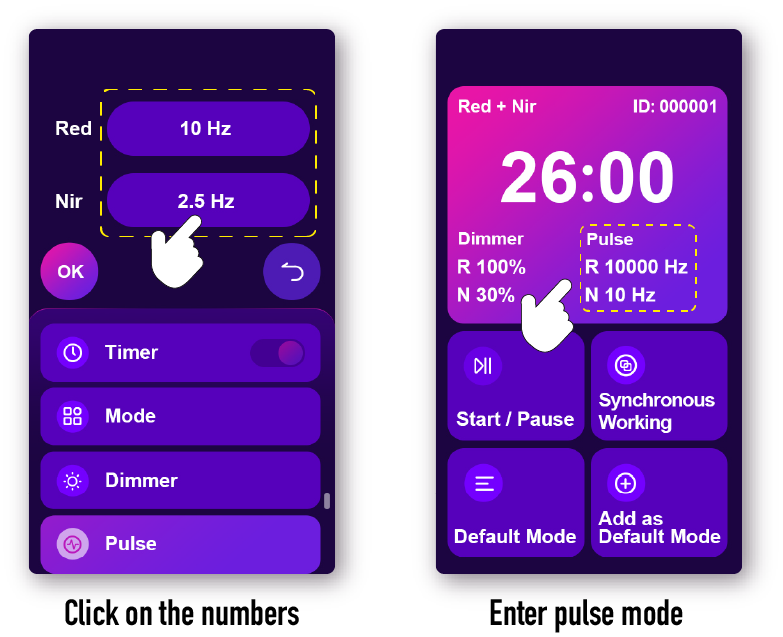
Click on the numbers and enter pulse mode 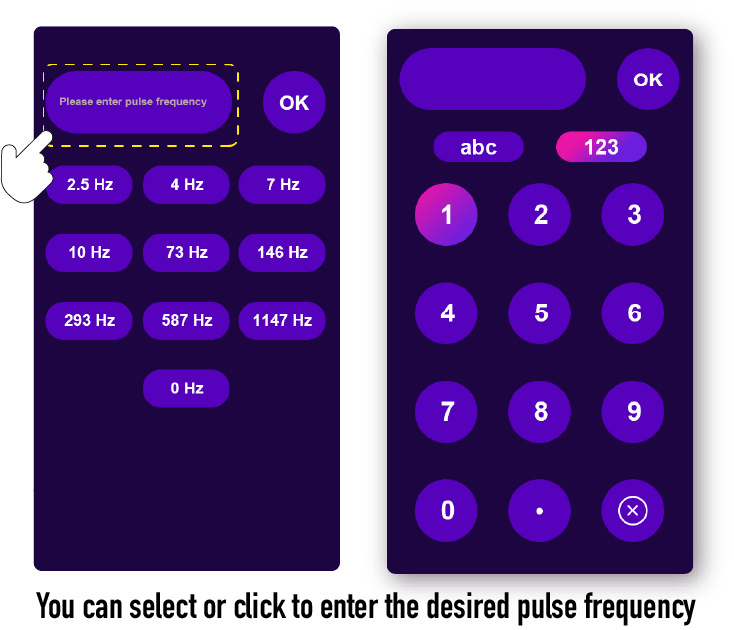
Select or enter the desired pulse frequency DEFAULT MODE
Custom Mode Management
- Click "ADD AS DEFAULT MODE" to save custom settings
- Slide the color block to the left to delete saved modes
- Press and hold the color block to open the digital adjustment page
- Click to open the custom settings page
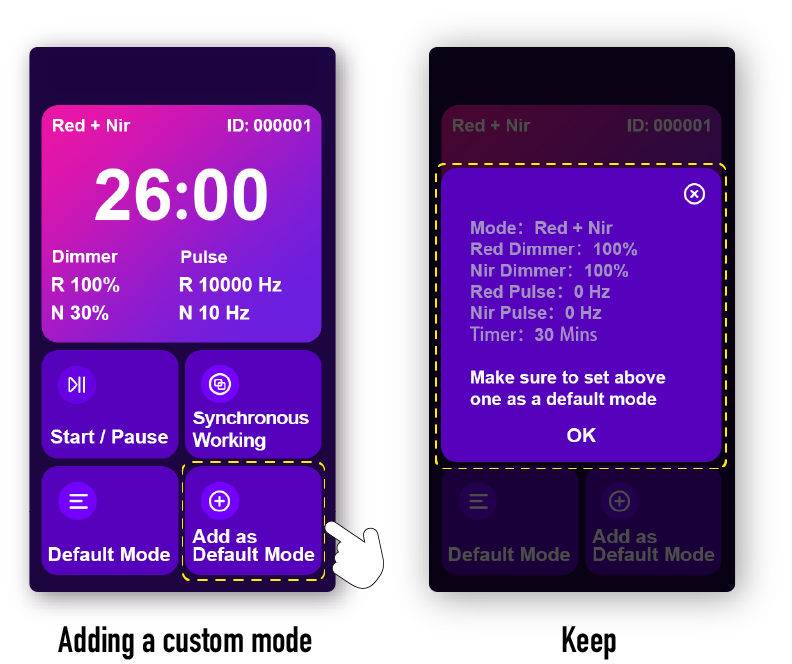
Add and save a custom mode 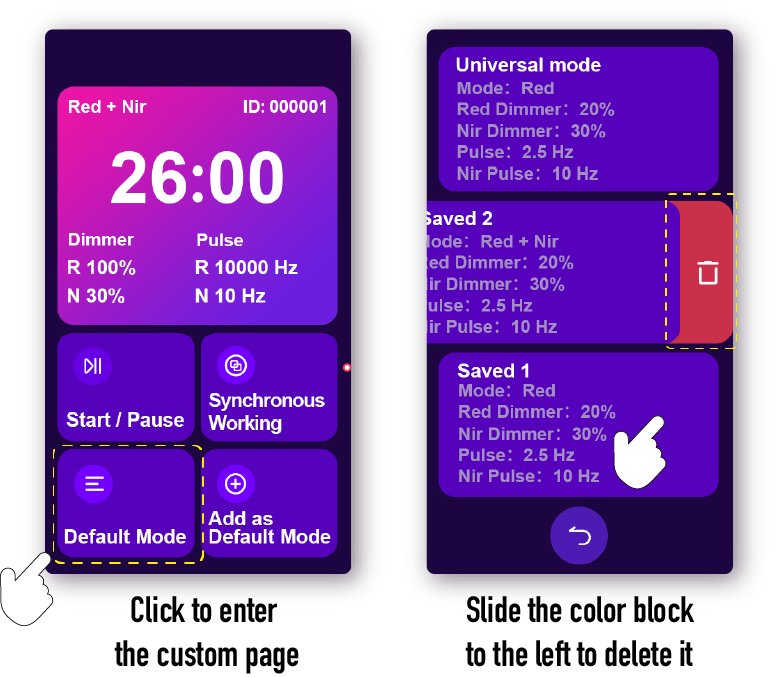
Click to open the custom settings page; slide the color block left to delete a mode 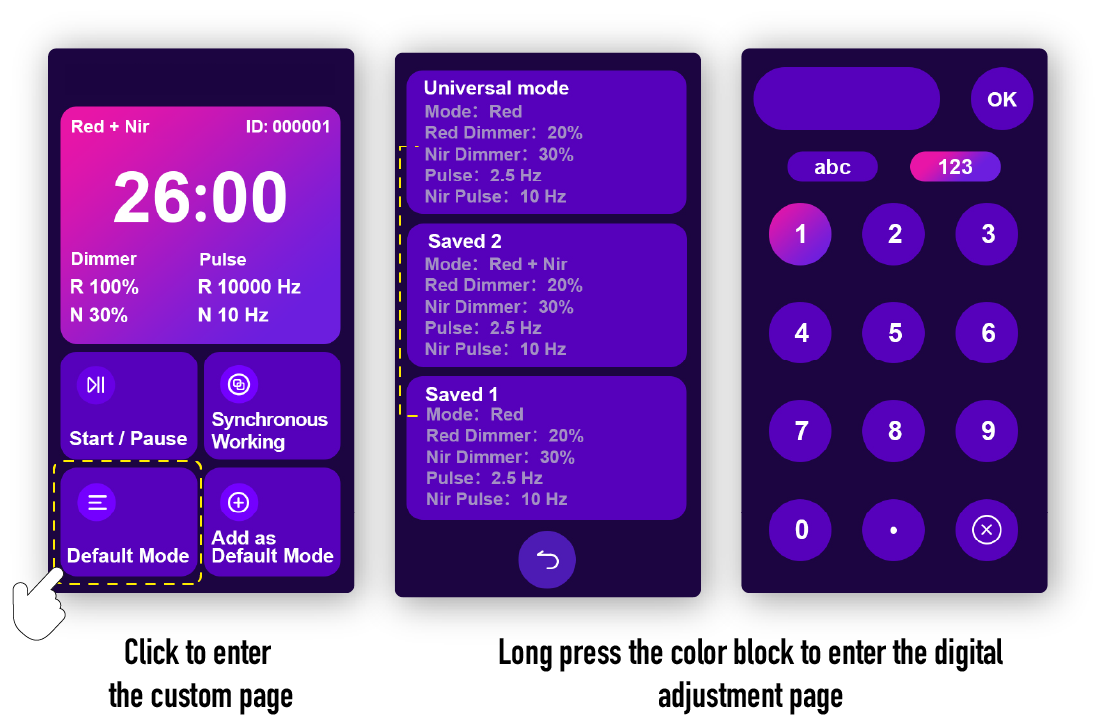
Click to open the custom settings page; press and hold the color block for digital adjustment PRESET MODE
Pre-configured Treatment Programs
- Choose a preset shown on your device's screen
- Screen labels may include Muscle, Joint Pain, Sleep, Skin, Mood and Recovery
- Preset names identify saved device settings; they do not guarantee a treatment outcome
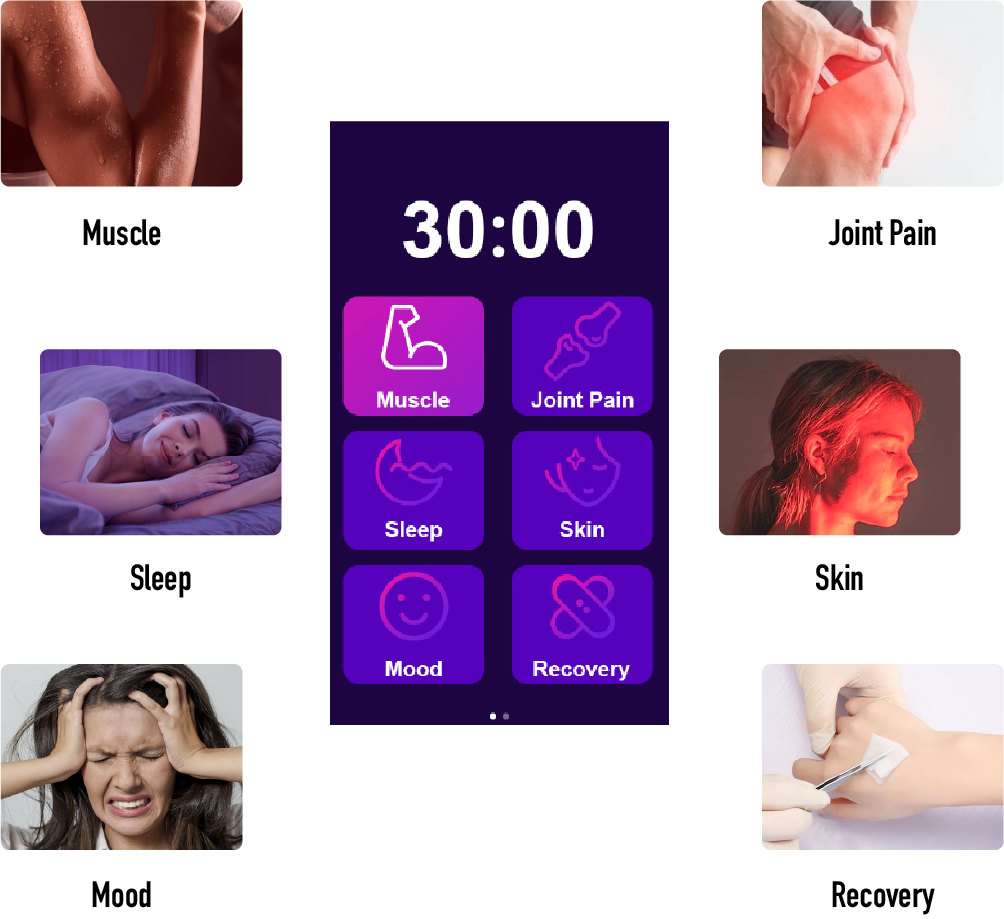
Preset mode selection: Muscle, Joint Pain, Sleep, Skin, Mood, Recovery 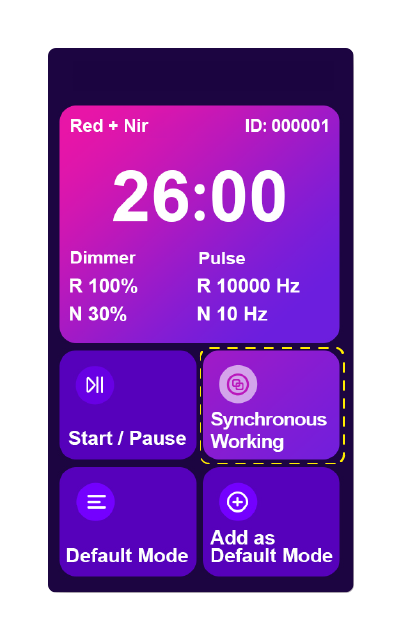
i 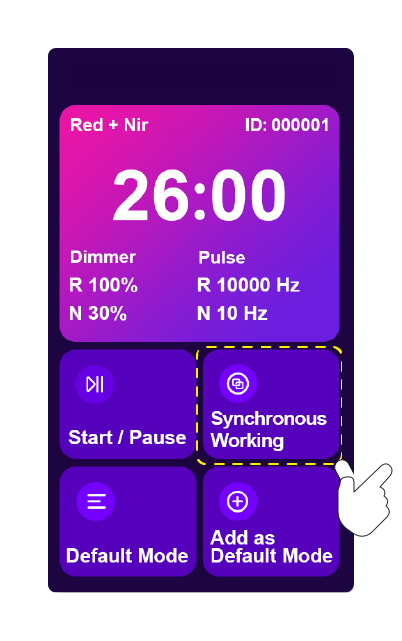
ii Synchronous Working
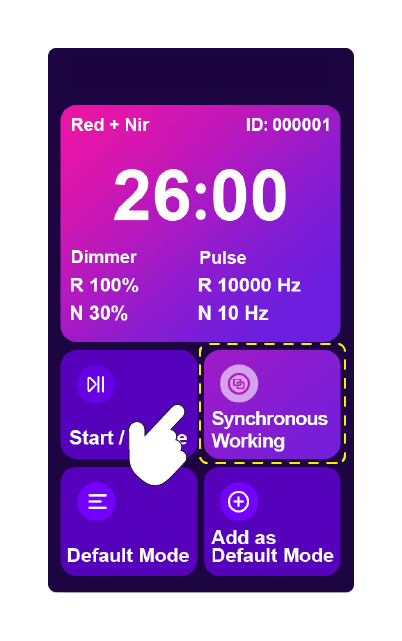
- Click Synchronous Working to enable pairing. (ii)
- The highlighted Synchronous Working button indicates Sync Mode. (i)
iii 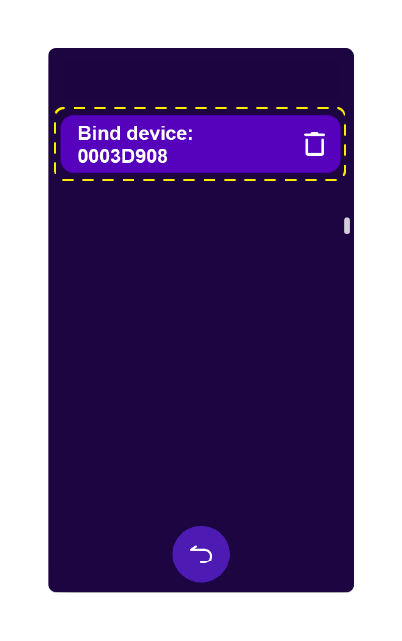
iv 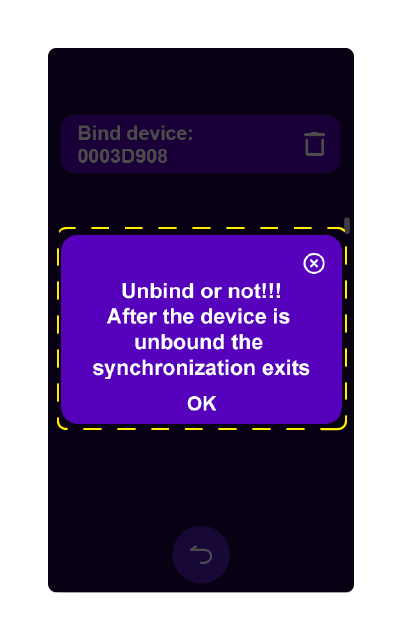
v - Press and hold Synchronous Working for 5 seconds to open the device list. (iii)
- The list shows the linked device. (iv)
- To unlink a device, click its delete icon, then click OK to confirm. Synchronization ends when the device is unlinked. (iv–v)
Setup & Controls
Connect the device to a power outlet and use the touchscreen interface to control your red light therapy sessions with advanced features and preset modes.
i 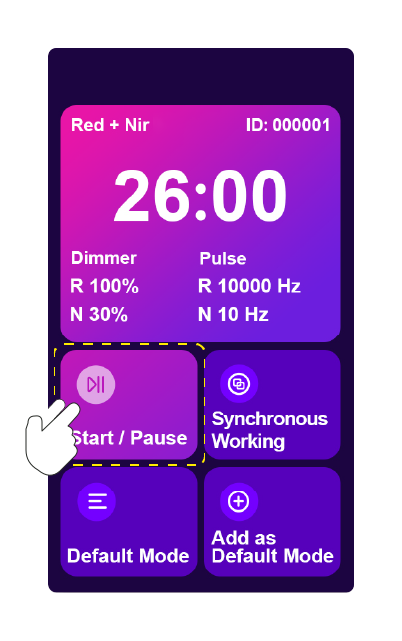
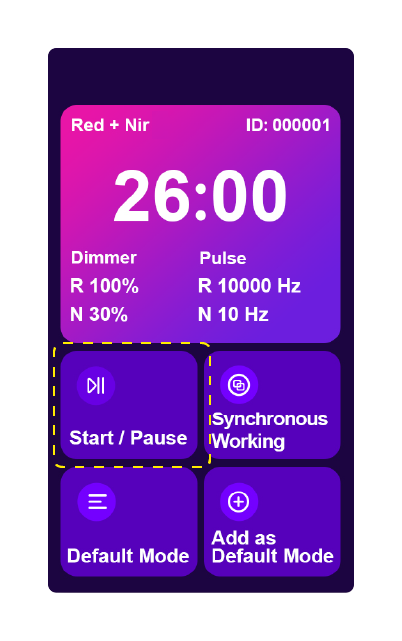
ii Start / Pause
- When the lights are off, the device is in standby mode. (i)
- Click to turn the light on or off. (ii)
i 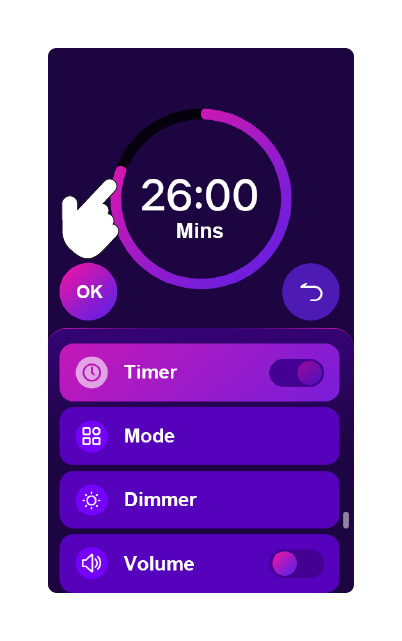
ii 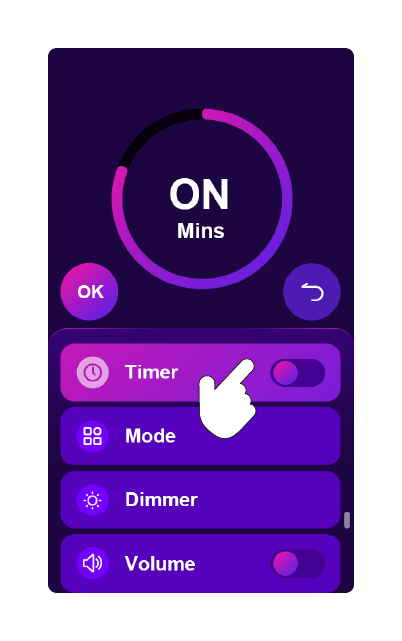
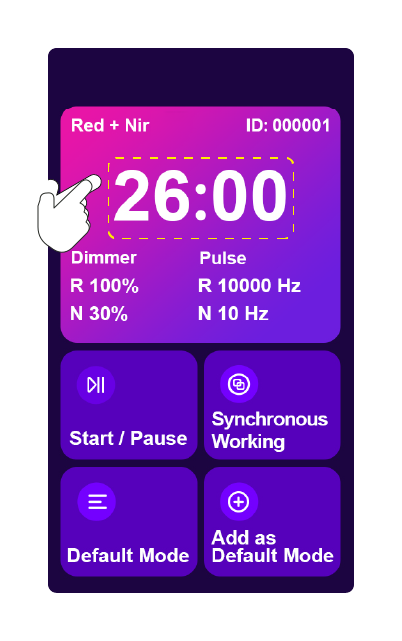
iii Time Setting
- Click the time display to open the timer settings. (i)
- Slide the colored control to adjust the session duration. (ii)
- To disable the timer, turn off the Timer switch. (iii)
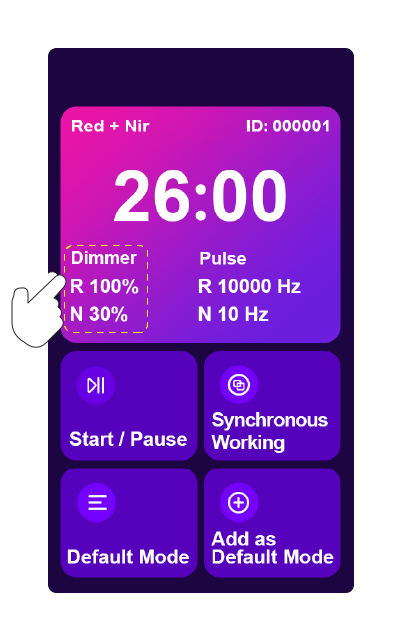
i 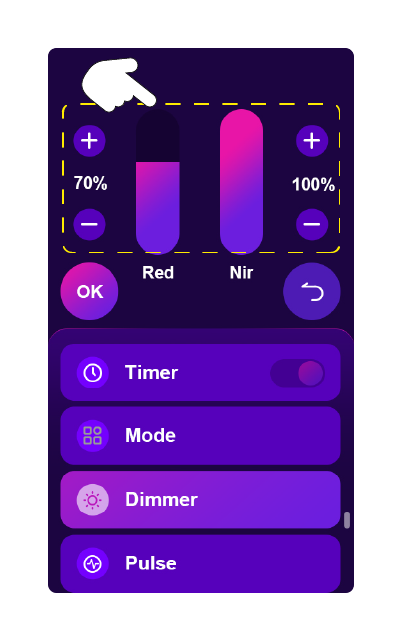
ii Dimmer
- Click Dimmer to open the brightness settings. (i)
- Slide the colored controls to adjust the brightness. (ii)
- For precise adjustments, click the + or − buttons. (ii)
Setup & Controls — continued
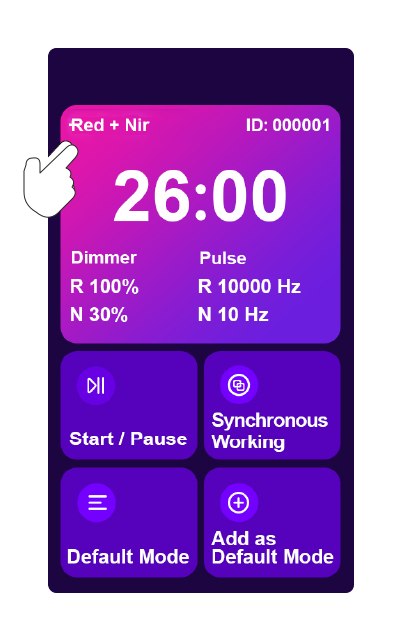
i 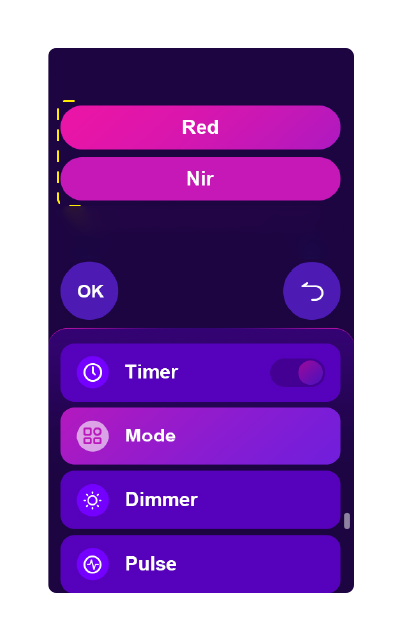
ii Mode Selection
- Click the light-mode label to open the mode selection screen. (i)
- Select Red or NIR (near-infrared) to choose the wavelength group. (ii)
i 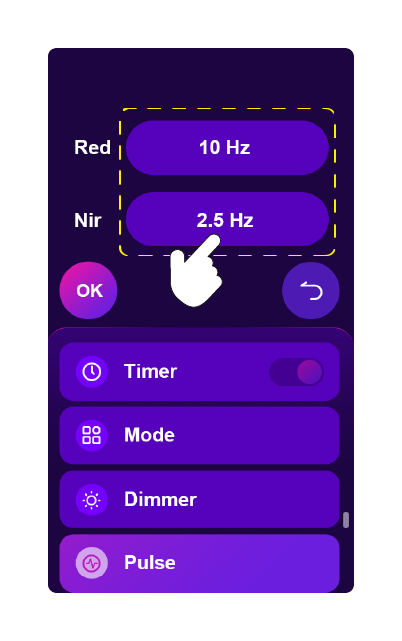
ii 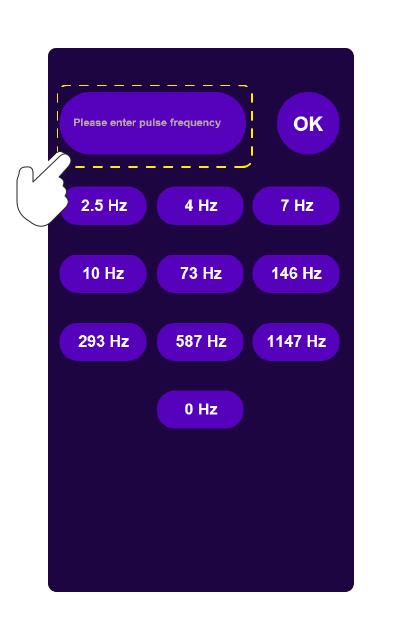
iii 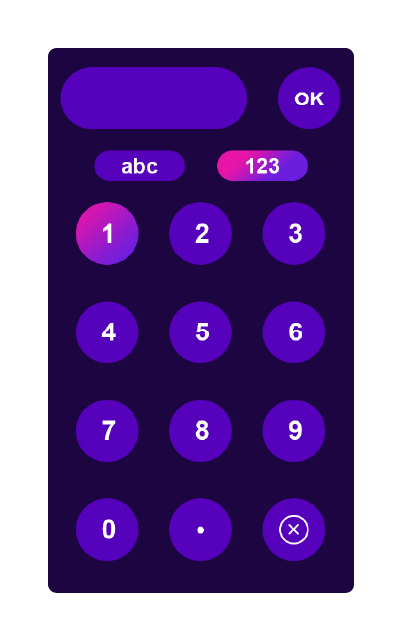
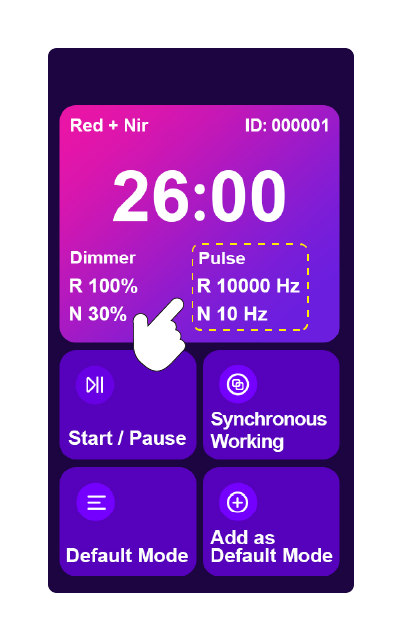
iv Pulse Setting
- Click Pulse on the main screen to open the pulse settings. (i)
- Click the frequency value for Red or NIR to adjust that wavelength group. (ii)
- Select a preset frequency, or click the entry field to enter a custom value. (iii)
- Enter the desired frequency using the keypad, then click OK to confirm. (iv)
Setup & Controls — continued
i 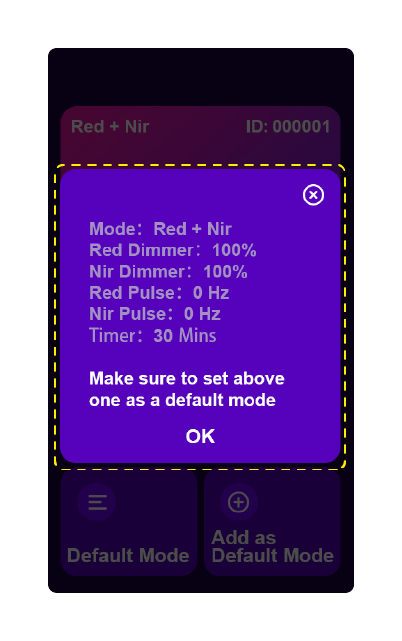
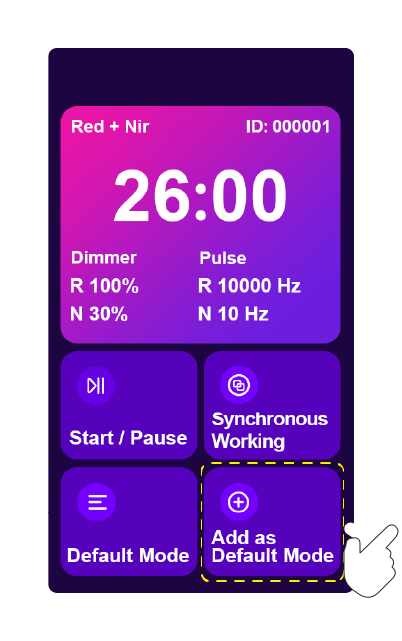
ii Default Mode
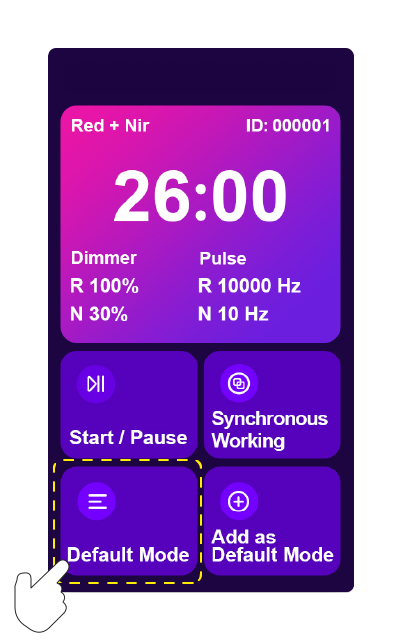
- Click Add as Default Mode to save the current settings. (i)
- Review the settings, then click OK to confirm. (ii)
iii 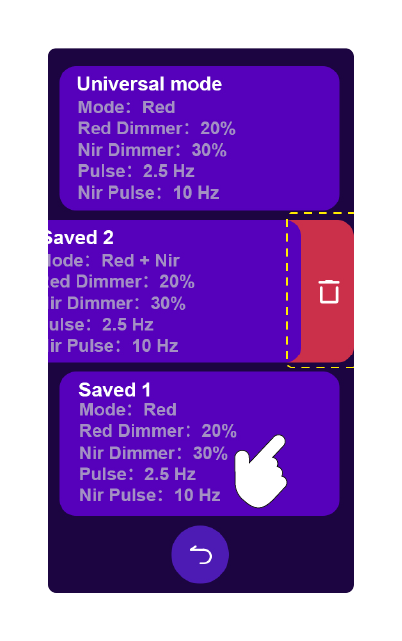
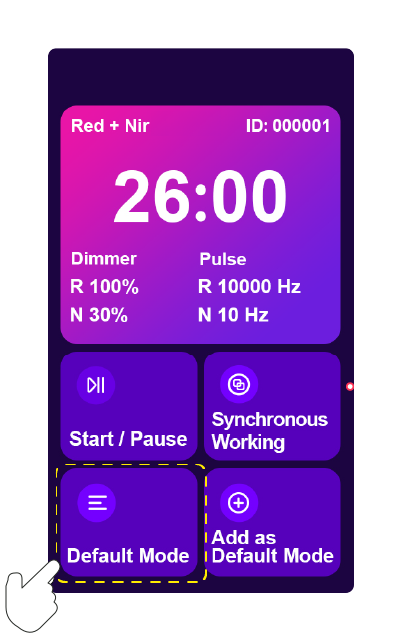
iv - Click Default Mode to open your saved modes. (iii)
- Slide a saved mode to the left to reveal the delete button. (iv)
v 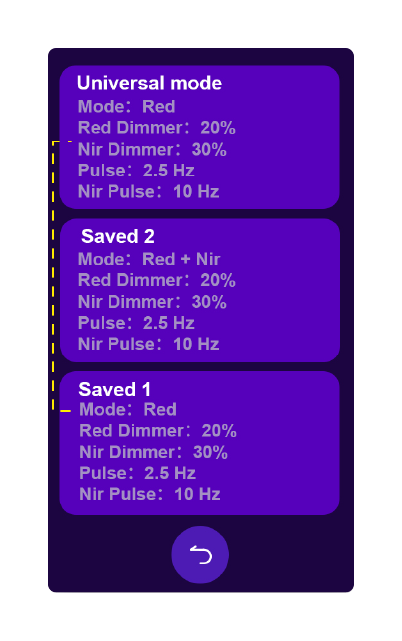
vi 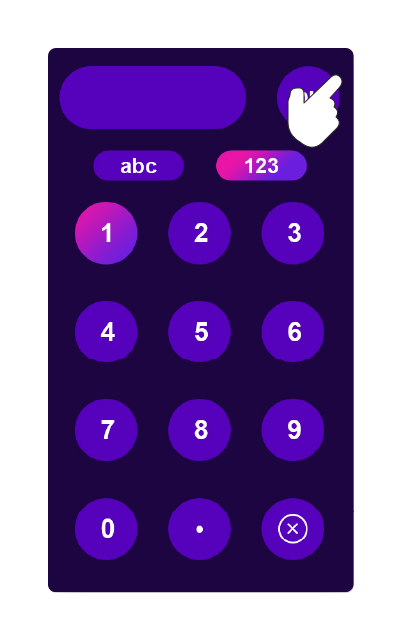
vii - Click Default Mode to open your saved modes. (v)
- Press and hold a saved mode to open the digital adjustment screen. (vi)
- Use the keypad to enter the value, then click OK to confirm. (vii)
Setup & Controls — continued
Muscle Sleep Mood Joint Pain Skin Recovery i Preset Mode
- Choose a preset shown on your device’s screen. (i)
- Available labels may include Muscle, Joint Pain, Sleep, Skin, Mood, and Recovery. (i)
- Preset names identify saved device settings; they do not guarantee a treatment outcome.
i ii Synchronous Working
- Click Synchronous Working to enable pairing. (ii)
- The highlighted Synchronous Working button indicates Sync Mode. (i)
iii iv v - Press and hold Synchronous Working for 5 seconds to open the device list. (iii)
- The list shows the linked device. (iv)
- To unlink a device, click its delete icon, then click OK to confirm. Synchronization ends when the device is unlinked. (iv–v)
Session Guidance
Before you start
- Use the device in a dry location and keep its ventilation openings clear.
- Check your device and cable for damage before use.
- Never look directly into the LEDs. Follow the device’s eye-protection instructions.
- Stop using the device if you experience discomfort or an adverse reaction.
Distance, duration & frequency
For this earlier model, ask Piri Red to confirm guidance for your device. If the instructions conflict, contact support before continuing.
Do not calculate session time by assuming that every panel follows a simple inverse-square relationship. Use measurements at the stated distance for your model.
Health questions
The device manual does not replace medical advice. Consult a healthcare professional if you are unsure whether light therapy is appropriate for you.
Irradiance & Coverage (Output)
Choose guidance for your exact device. A portable panel and a full-size panel do not have interchangeable output or coverage.
Verified measurement data for this earlier model is unavailable. Contact Piri Red for model-specific light-output information.
Maintenance And Safety
Storage & maintenance
- Store the device in a dry and cool place
- Avoid moisture and extreme temperatures
- Wipe the surface with a clean cloth when needed
- Ensure ventilation openings and connections are free from dust and dirt
- Avoid opening or modifying the device yourself
Recycling
When the device has reached the end of its lifespan, it should not be disposed of with regular household waste.
Deliver the device to an approved collection station for electronic waste, or follow local regulations for recycling.
Additional Controls
Controls and optional accessories can vary by hardware revision. If your device does not show the controls described below, contact Piri Red before following the sequence.
Optional electric stand: height lock
Press and hold the S and 2 buttons on the remote control simultaneously for more than 5 seconds to lock the stand height. To unlock, repeat the same process.
Wireless Synchronization (Advanced Multi-Device Sync)
Synchronize multiple devices for coordinated operation:
- Enable synchronization on all devices you want to synchronize. Turn on the sync function one by one.
- To designate a device as the host, long-press 'Synchronous working' to enter settings.
- To synchronize another device with the host, select its ID code.
- To prevent other devices from controlling this device, disable synchronization. However, this device can still control other devices in the same group.
About The Light
Your device uses red and near-infrared light. The wavelength values identify the light emitted; they do not, by themselves, define a session duration or guarantee a result.
- Red light
- 630 and 660 nm. Visible red light.
- Near-infrared light
- 810, 830 and 850 nm. Light that is not readily visible to the eye.
For further reading, visit Piri Red’s learning library. For your device’s measured output, see specifications.
Disclaimer
This product is not intended to diagnose, treat, cure or prevent disease. The information in this guide does not replace professional medical advice. Contact a doctor if you have questions about your health or how to use the device.
FAQs
How do I know I have the right manual?
Match the model on your device label. Similar names can refer to different generations. Check the model identifier and specifications for your hardware revision. If you are unsure, contact support with a photo of the label.
Why do some LEDs look dim or unlit?
Near-infrared light is not readily visible. This model uses red and near-infrared wavelengths. If you suspect a fault, contact support rather than judging output by visible brightness alone.
Where can I find session settings for this device?
Read setup & controls and session guidance.
Can I save or print the manual?
On desktop, use Print / Save PDF in the left menu. On mobile, Share opens your device’s available sharing apps; use the browser’s Print option to save a PDF. To keep every manual and its diagrams offline, download the ZIP from the manual library.
What if an accessory is missing or the device is damaged?
Keep your order details and contact Piri Red. See the returns policy for current reporting requirements.
Warranty & Support
2-year limited warranty
The warranty covers material and manufacturing defects under normal use. Keep your proof of purchase and contact Piri Red for a claim.
30-day returns
The store’s return period runs from the purchase date. Eligibility, condition, packaging and proof-of-purchase requirements apply.
For current terms and the returns process, read the warranty, returns & refunds policy.